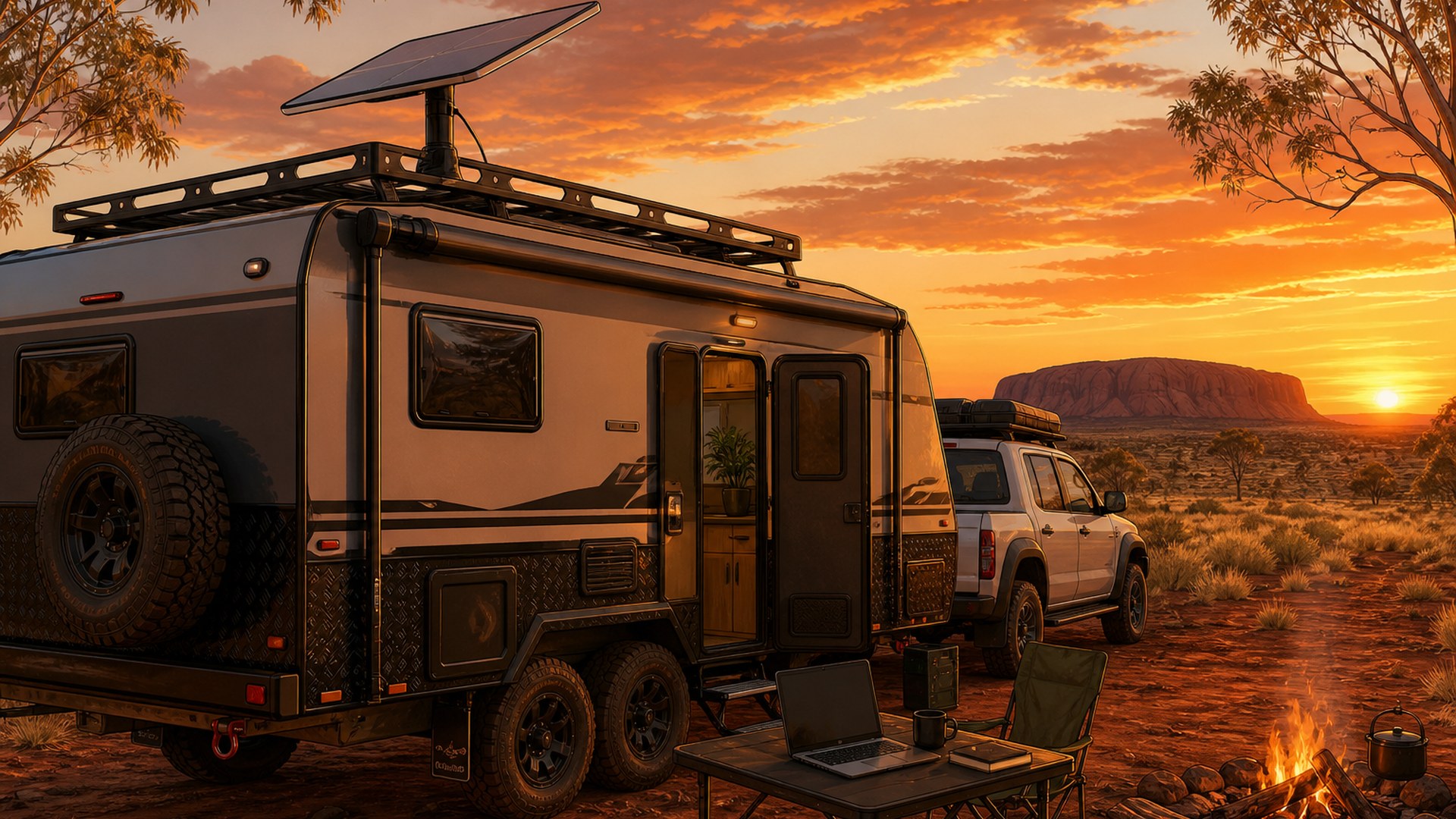

Mount Starlink for a caravan the way the app tells you to: clear sky first, hardware second. Starlink's own Help Center says objects such as a tree branch, pole or roof that obstruct the link will cause service interruptions, and the fix starts in the Starlink app on iOS or Android — open Check for Obstructions, hold the phone as close as possible to the height and perspective of the dish, and scan the field of view before you commit a mount.
Quin Halberg · Tuesday 8 September 2026
Read next


Step by step
- Scan for obstructions
In the Starlink app, select Check for Obstructions and scan with the phone held at the dish's height and position. Try other spots if the view is blocked.
- Choose a mount
Pick a portable tripod, hitch or drawbar pole for a reversible setup, or a sealed permanent roof mount for set-and-forget reliability.
- Seal the cable entry
Use UV-rated hardware, strain relief, a drip loop and a sealed bulkhead or wall entry. Pay a professional if you're not confident with roof penetrations.
- Choose a power path
Run the kit from a pure-sine inverter, or wire 12 V DC directly with a fuse close to the battery, following the ratings on your own hardware.
- Check your plan
Confirm your Roam plan rules for international travel and in-motion use in your Starlink account before you travel.
- Stow before you drive
Use the Stow control in the app's Settings before driving, and remove portable mounts for travel.
This desk has not corrected this file. Corrections.
The paper
Comments
No notes on this story yet.
Sign in to comment