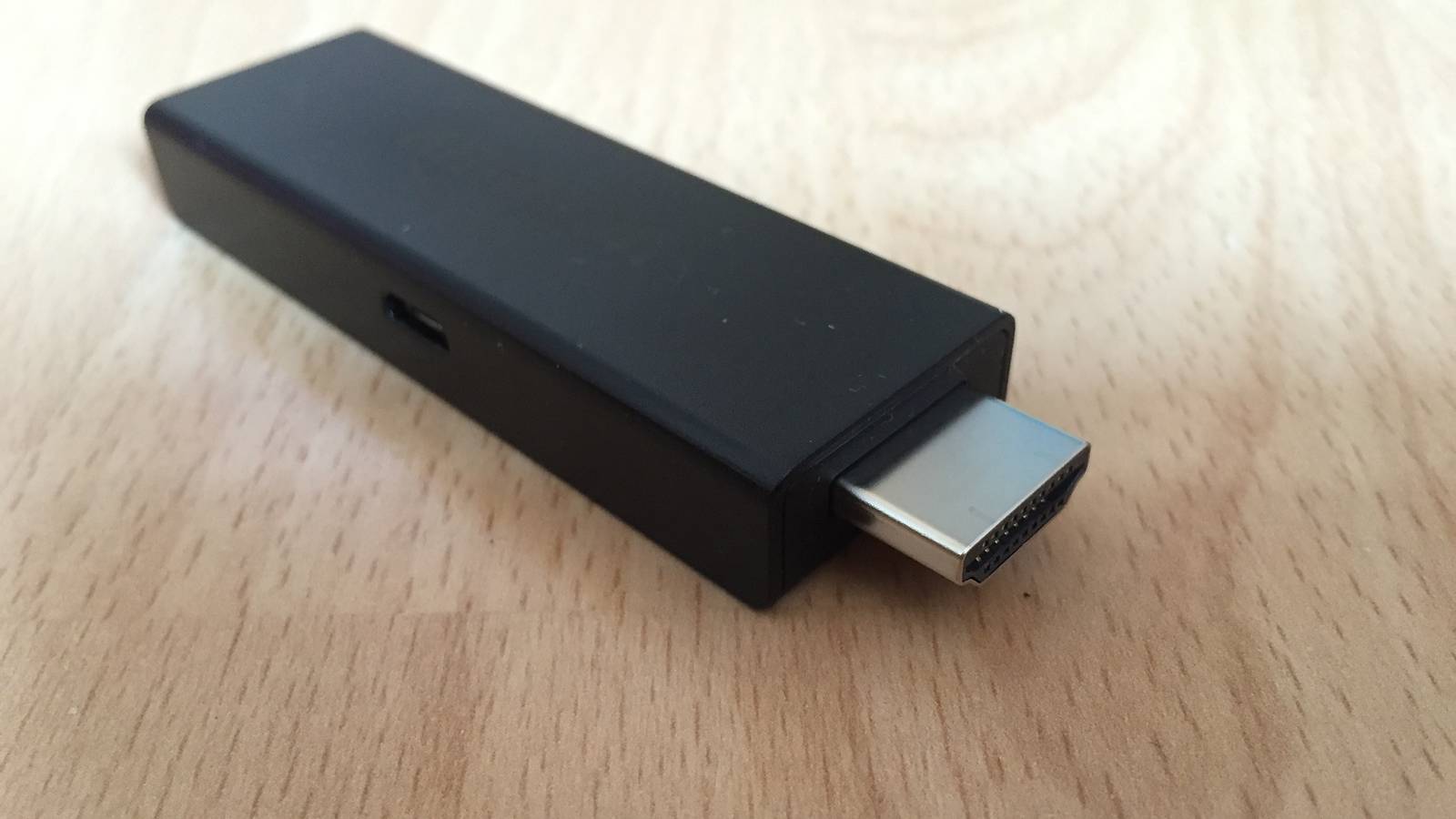

Amazon's new Fire TV Stick 4K can run straight off your TV's USB port, so you don't need a power point. AFTVnews, a long-running Fire TV news site, says it's the first 4K Fire TV Stick that's officially supported that way. It went on sale in Australia on 30 September for A$129, through Amazon Australia and JB Hi-Fi.
Amazon calls the feature Direct Power, and the stick comes with a short cable made for it. Here's how to set it up the way Amazon's own help pages describe, how to tell if your TV's up to the job, and what to do if it isn't.
Before you open the box
Check the back of your TV first. Amazon's setup page for the Fire TV Stick 4K (3rd Generation) says you need "a TV with available HDMI and USB ports." The cable in the box is short. The Australian page gives it as 0.4 m, and says it's "designed for Direct Power." Amazon pitches that as "a clean, clutter-free setup that powers your Fire TV Stick directly from your TV." So you want a free USB-A port close to a free HDMI port.
Know what you're getting. The same page lists the stick, the Fire TV Remote (2026 release), the USB power cable and AAA batteries. There's no wall adapter. If your TV's USB port is in the wrong spot, you'll need a USB-C cable and a power adapter of your own.
You'll also need your Amazon account email address or phone number and password, plus your Wi-Fi name and password.
Check your apps, too. This stick runs Amazon's Vega operating system, not the Android-based Fire OS on older sticks. Amazon's developer spec sheet lists it as Vega OS 2.0. In its launch announcement, Amazon says it has added more than 2,000 apps since its first Vega device, including Spotify, Xbox, VLC and a range of VPNs, alongside Netflix, Disney+, YouTube, Prime Video and others. But AFTVnews points out that Vega devices can't sideload apps, and they've got a much smaller catalogue. If there's one app you can't live without, look for it in the Fire TV app store listing before you buy.
Plug it in
Here are Amazon's steps, in Amazon's order:
- Plug the included USB-C power cable into the stick's USB-C power port.
- Plug the stick into your TV's HDMI port.
- Plug the other end of the power cable into the USB-A port on your TV.
If the stick won't fit, Amazon suggests "any 4K HDMI extender you have at home" or its own extender. It says you may need one if your TV's back panel pocket is smaller than 4.5 inches, about 11.4 cm, if other cables crowd the port, or if the TV has back-facing HDMI ports and is mounted or sits flush against the wall.
If your TV's USB port is too far from the HDMI port, Amazon says to use "a USB-C cable and 5V 1A USB power adapter you may already have at home" and plug into the wall instead.
Then sort out the remote. Amazon says to press and hold your thumb on the arrow on the back of the remote to release the latch, slide the cover off, and put in the AAA batteries. Press firmly, because the page says the latch needs it.
Get it online and signed in
Using your TV's own remote, turn the TV on and switch to the HDMI input the stick's plugged into.
Amazon gives you two ways to set up Wi-Fi. You can scan the QR code on screen with your phone and it'll set up the connection automatically. Or you can use the Fire TV remote and follow the instructions on screen to do it by hand.
Signing in works the same way. Scan the QR code with your phone, or go to amazon.com.au/code on your phone or computer and type in the activation code on the screen. If you made your Amazon account without a password, Amazon says to press the Back button on the remote when it asks for one, then use the web address and code instead.
Last, answer the questions on screen to set up equipment control. That's what lets the Fire TV remote run the power and volume on your TV and soundbar. Amazon's guide to the 2026 remote's buttons shows a Power button at top left, Volume and Mute buttons, a button you can customise and two rows of app buttons.
Amazon's official setup video for this stick is at the top of this story. The Fire TV channel describes it as covering how to connect, power options for your TV, and what to do if you need a different cable setup.
If the TV can't power it
Not every TV's USB port puts out enough power. If yours doesn't, Amazon says the stick will tell you. Its low-power help page says that when the stick detects it isn't getting enough power from the TV, it shows a notice with two options. "Got it" carries on, and "Ask me Later" snoozes it. Either way, Amazon says, "it will reappear until you resolve the power issue."
Here are Amazon's fixes, in order:
- Try a different USB port.
- Plug the cable into your TV's USB 3.0 port, if it has one.
- Use a 5W (5V, 1A or equivalent) power adapter and a longer USB power cable, and plug into a power point.
If the low-power screen comes up before the stick has even turned on, Amazon says to go straight to a power outlet.
One thing might trip you up if you've owned a Fire TV Stick before. Amazon's general Fire TV Stick setup page, written for older models, still says "avoid plugging the USB cable directly into the TV." That advice doesn't apply here. The page written for the 3rd-generation 4K stick tells you to do exactly that.
Other fixes and first things to try
If the remote doesn't pair on its own, the setup page for this stick says to press the Home button for 10 seconds. Past that, the tips below come from Amazon's general Fire TV help pages, not from a page for this particular model, so treat them as Amazon's general Fire TV steps.
Amazon's remote pairing page adds a few more things to try. Stay within about 3 m of the stick. Take the batteries out for 30 seconds and try again, or put in fresh alkaline batteries. If none of that works, reset the remote by holding the Left, Menu and Back buttons together for 12 seconds, then hold Home again.
If the picture freezes, Amazon's power and frozen-screen page suggests holding Select and Play/Pause together for about five seconds to force a restart. You can also unplug the power for 60 seconds.
If you're not getting 4K, Amazon's 4K troubleshooting page points to an Audio/Video Diagnostics tool under Settings, then Display & Sounds. It checks your TV's maximum resolution, refresh rate and HDR support. Amazon says the tool isn't on every Fire TV device, so it may not be on yours. The same page lists the usual suspects. You might have a streaming plan without 4K, a weak connection, or a TV input that isn't set up for 4K or HDR. Amazon's spec sheet says the stick supports Ethernet through an adapter, if Wi-Fi's the weak link.
Once you're up and running, there's plenty to watch, from Toy Story 5 on Disney+ to the second season of Dark Matter on Apple TV. And if you move house or go travelling, the whole thing now comes out from behind the TV with two plugs.
The paper
Comments
No notes on this story yet.
Sign in to comment