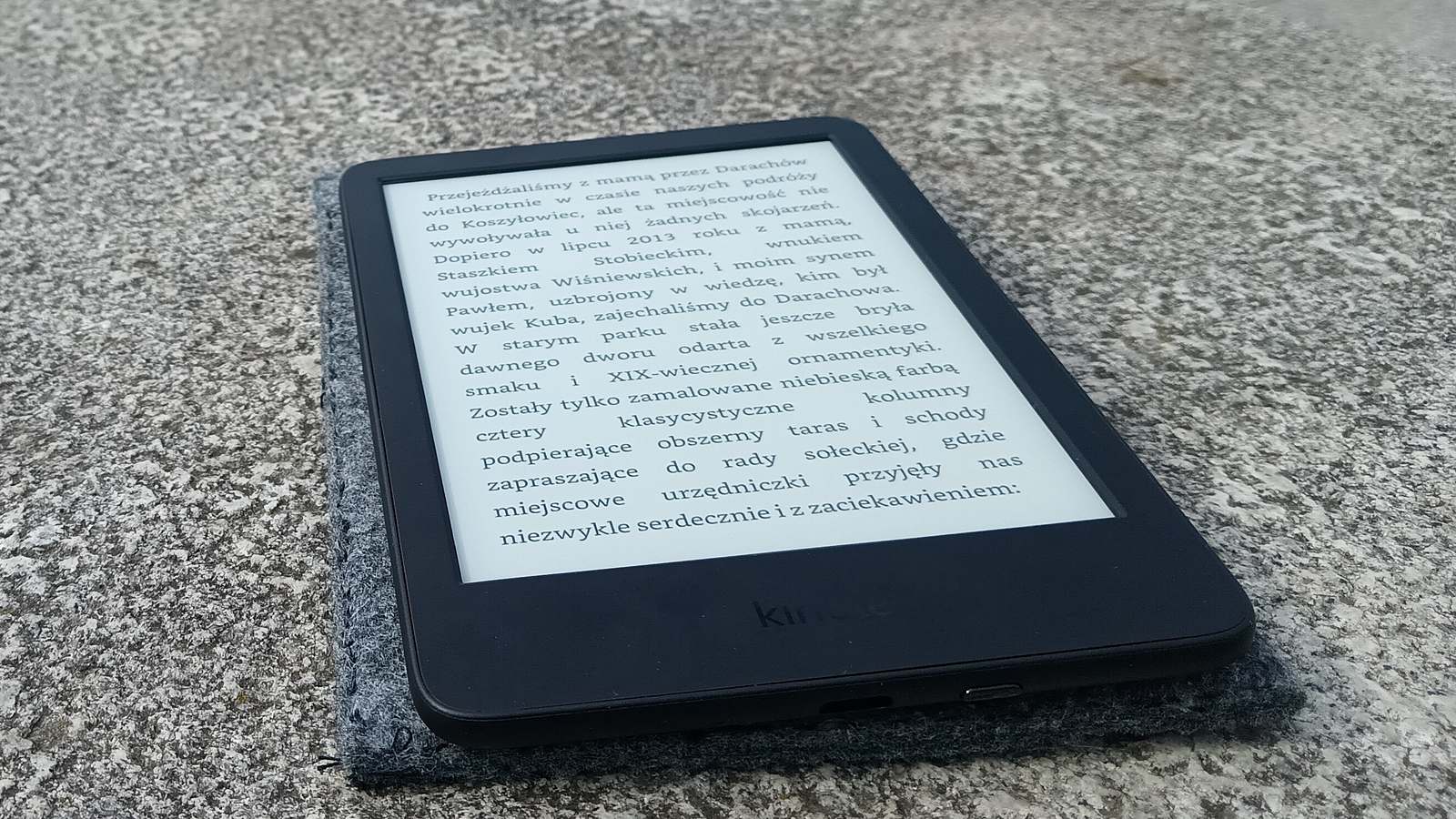

Amazon's redesigned Kindle went on sale in Australia on 1 October, and if you're upgrading, here's the good news. Most of your library moves itself. Books you bought from the Kindle Store live in your Amazon account, not on the device.
The bits that need some care are your personal files, your collections and the old Kindle you're about to pass on. Here's how to do the whole move, step by step, using Amazon's own help pages. Those pages were written for earlier Kindles, so menu names may differ slightly on the 2026 models.
What's new, and what it costs
Amazon announced the new family on 1 October. In its launch post, devices vice president Kevin Keith describes a 6-inch Kindle that's "the most pocket-sized Kindle we've ever made," with 16 GB of storage, up to six weeks of battery life and a flush-front screen with no raised border. Amazon says it opens books 30% faster than the model before it.
For Australian prices, we're relying on Digital Reviews Network. It says the base Kindle costs A$279 in Ube or Graphite, and the new aluminium-backed version with 32 GB costs A$299. Both are on sale now. It says the new Kindle Paperwhite starts at A$369 and the Kindle Colorsoft at A$449, and both are on pre-order here. There's also a A$49.95 Bluetooth page-turn remote called Kindle Click, which Amazon says works with the new range and any Kindle from 2024 or later.
None of that changes how you move your books. The steps are the same whether you're getting a base Kindle now or holding out for a Paperwhite.
Before you switch: sync the old Kindle
Start with the Kindle you've already got. Syncing it makes sure your place in each book and your notes are saved to your account before you put it away.
Amazon's sync help page says sync backs up "your furthest page read," along with notes and highlights, and downloads anything that's waiting. Here's how:
- Make sure the Kindle is connected to the internet.
- From the home screen, swipe down to open Quick Actions, or select Menu.
- Select the Sync icon, or Sync and Check for Items.
Next, think about your personal files. Anything you emailed to your Kindle through Send to Kindle is already in your account. Anything you copied on with a USB cable isn't. Amazon's user guide for the Kindle Colorsoft puts it plainly. Kindle Store purchases are "securely stored and available in the Amazon Cloud," but personal content "stored on your Kindle, but not emailed to it" has to be moved by hand.
To get those files off, plug the old Kindle into a computer. Amazon's USB transfer page says that on Windows, the Kindle shows up in File Explorer as "Kindle" and you don't need any extra software. Copy what's in its documents folder somewhere safe. On a Mac, Amazon says Kindles released from 2024 onwards need its Send to Kindle for Mac app, which has a USB File Manager under Tools. Older Kindles don't need it.
Set up the new Kindle
If you bought the new Kindle on your own Amazon account, it may already know who you are. The Colorsoft user guide says a Kindle bought online with your account "is already registered to you." Look for your Amazon name in the top left of the home screen. If it says My Kindle, or someone else's name, you'll need to register it.
Amazon's Kindle Paperwhite setup page sets out the steps for current Kindles:
- Select your device language.
- Select your location.
- Choose Set up on this Kindle, or Set up with your phone.
- Connect to Wi-Fi.
- Follow the steps on screen to register the Kindle to your Amazon account.
Setting up with your phone uses what Amazon calls Simple Setup. You need the Kindle app on your iPhone or Android phone, with Amazon Device Simple Setup turned on in the app, and Bluetooth on. Android phones need Location Services on as well. Amazon says the app "automatically detects your Amazon account and any previously saved Wi-Fi passwords."
If registration fails, Amazon's registration help page says the usual causes are "incorrect device time, outdated software, or incorrect passwords." Check the time at the top of the screen. If it's wrong, Amazon's time-setting page says to go to All Settings, then Device Options, then Date and time. For software, go to All Settings, then Device Options, then Software updates. Then restart and try again.
Bring your books and files across
Once the new Kindle's registered, your Kindle Store books are waiting for you in the cloud. The Colorsoft user guide says to tap Your Library on the home screen, tap the filter button in the top left, deselect the Downloaded filter, then tap a book to download it. With that filter off, you see everything you own, not just what's on the device.
Collections take one more step. Amazon's collections page says collections "don't automatically download to your other devices." To get one back, select Library, open the Sort By menu in the top right and select Collections. Then select the Menu icon on the collection you want and choose Download all items.
For the personal files you saved earlier, you've got two options. You can plug the new Kindle into your computer and copy them into its documents folder, the same way you got them off. Or you can use Send to Kindle, which is what Amazon recommends for moving files. Its Send to Kindle email page says you can send up to 25 attachments in one email, as long as they add up to 50 MB or less. The email has to come from an address on your Approved Personal Document Email List, in the Manage Your Content and Devices page, and Amazon allows up to 15 approved addresses. The USB transfer page lists the formats it takes, including PDF, DOCX, TXT, RTF, HTML, common image formats and EPUB. Files sent that way are stored in your account, so your next upgrade will be even easier.
If the Apple TV series sent you looking for Blake Crouch's novel, as we noted when Dark Matter's second season began, it's a good first download.
Wipe the old Kindle before it goes
If you're giving the old Kindle to someone in the family or selling it, don't just deregister it. Amazon's deregister page recommends "a Factory Reset to remove all content and user settings" before you gift or sell it.
Amazon's factory reset page gives the steps:
- From the home screen, swipe down to open Quick Actions, or select Menu.
- Select Settings or All Settings.
- Go to Device Options, or select Menu.
- Select Factory Reset. On older devices, select Reset Device again.
- Select Yes to confirm.
Amazon warns that a reset removes "all your personal data, downloaded content, and content that hasn't been synced." That's why you sync first. Once it's done, the device is deregistered from your account and ready for its next reader.

The paper
Comments
No notes on this story yet.
Sign in to comment